Best USB WiFi Adapters for Kali Linux 2026: Monitor Mode & Packet Injection
Your laptop's built-in WiFi adapter almost certainly cannot do wireless penetration testing. Here's why:
- Built-in adapters are designed for connectivity, not for raw frame capture.
- They do not support monitor mode — the ability to passively capture all 802.11 frames on a channel regardless of destination MAC address.
- They do not support packet injection — sending arbitrary raw 802.11 frames, required for deauthentication attacks, WPS testing, and handshake capture.
- Many built-in chipsets (Intel, Broadcom) explicitly block these modes at the driver level.
A dedicated external USB adapter with the right chipset solves all of this. This guide covers the best options for Kali Linux in 2026.
Legal & Ethical Notice: Only perform wireless security testing on networks you own or have explicit written permission to test. Unauthorized access is illegal in most jurisdictions.
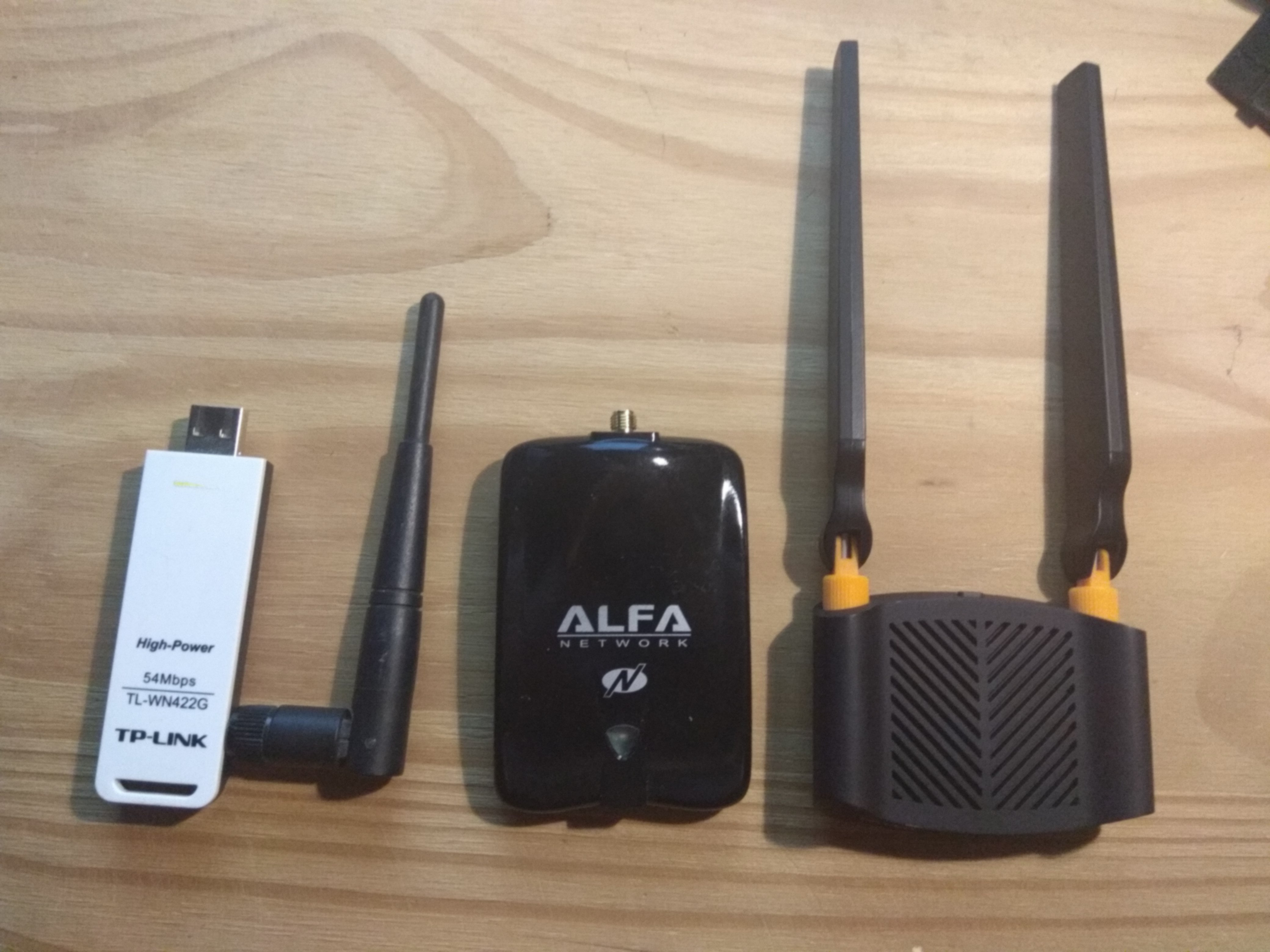
Breaking News: RTL8812AU Added to Linux Kernel 6.14 (February 2026)
The RTL8812AU chipset — used in the Alfa AWUS036ACH, TP-Link Archer T4UHP, and many other popular adapters — was merged into the mainline Linux kernel in kernel 6.14 (February 2026).
This means:
- No more DKMS driver installation.
- No more
realtek-rtl88xxau-dkmspackage. - The driver loads automatically on plug-in, just like MT7612U and AR9271.
Kali Linux 2026.1+ ships with kernel 6.14, so RTL8812AU adapters now work out of the box. For older kernels, the DKMS method still works — see the RTL8812AU Kali Linux 2026 guide for full details.
Chipset Guide: Which Family Should You Choose?
Understanding chipset families helps you make a smarter purchase.
MediaTek (MT76xx series) — Best Plug-and-Play
- MT7612U (AWUS036ACHM): dual-band AC, native
mt76kernel driver, rock-solid monitor mode. - No DKMS, no compilation, works on any kernel ≥ 4.19.
- Recommended if you want zero driver friction.
Atheros (AR9271) — Best Legacy Reliability
- AR9271 (AWUS036NHA): 2.4 GHz only, native
ath9k_htckernel driver. - Has been in-kernel since Linux 2.6.35. Extremely mature and stable.
- See the full Alfa AWUS036NHA guide for setup and troubleshooting.
Realtek (RTL8812AU) — Now In-Kernel (6.14+)
- RTL8812AU (AWUS036ACH, Archer T4UHP): dual-band AC, native driver in kernel 6.14+.
- Previously required DKMS; now works out of the box on Kali 2026.1+.
- Best overall performance for 5 GHz AC networks.
Top Recommended Adapters (2026)
Adapter Comparison Table
| Adapter | Chipset | Driver | Monitor Mode | Injection | Kali OOB 2026 |
|---|---|---|---|---|---|
| Alfa AWUS036ACM | MT7612U | mt76 (built-in) | Yes | Yes | Yes |
| Alfa AWUS036ACHM | MT7610U | mt76 (built-in) | Yes | Yes | Yes |
| Alfa AWUS036NHA | AR9271 | ath9k_htc (built-in) | Yes | Yes | Yes |
| TP-Link TL-WN722N v1 only | AR9271 | ath9k_htc (built-in) | Yes | Yes | Yes |
| rtl88x2bu adapters | RTL8812BU | realtek-rtl88xxau-dkms | Yes | Yes | No (DKMS) |
| TP-Link Archer T4UHP | RTL8812AU | in-kernel (6.14+) | Yes | Yes | Yes (Kali 2026.1+) |
Alfa AWUS036ACM (MT7612U) — Best Overall 2026
The AWUS036ACM is the top pick for 2026. It uses the MediaTek MT7612U chipset with the native mt76 kernel driver, delivering AC1200 dual-band performance with reliable monitor mode and packet injection — no DKMS required.
Specs: - 802.11ac/a/b/g/n, AC1200 (up to 867 Mbps on 5 GHz) - Dual-band: 2.4 GHz and 5 GHz - USB 3.0 - Native mt76 kernel driver — works out of the box on Kali 2023+ - Full monitor mode and packet injection on both bands
Why choose this: The AWUS036ACM is the best all-round adapter for 2026. Native mt76 driver support means zero setup friction on any modern Kali install.
Alfa AWUS036ACHM (MT7610U) — AC600, Compact
The AWUS036ACHM uses the MediaTek MT7610U chipset, also supported by the native mt76 driver. It is slightly smaller and operates at AC600, making it a compact and highly portable option.
Specs: - 802.11ac/a/b/g/n, AC600 - Dual-band: 2.4 GHz and 5 GHz - Native mt76 kernel driver — no DKMS needed - Works out of the box on Kali 2023+ - Reliable monitor mode and injection on both bands
Why choose this: If you want something that "just works" on any modern Kali install without touching drivers and prefer a compact form factor, the ACHM is an excellent choice.
rtl88x2bu Adapters (RTL8812BU) — Dual-Band with DKMS
Several adapters use the RTL8812BU chipset (rtl88x2bu), including models from Netgear, ASUS, and various generic brands. These offer dual-band AC support but require the DKMS driver package.
Install the driver on Kali:
sudo apt install realtek-rtl88xxau-dkms
Specs: - 802.11ac/a/b/g/n, dual-band - Requires realtek-rtl88xxau-dkms — not out-of-the-box - Monitor mode and packet injection supported once driver is installed
Why choose this: If you already own an rtl88x2bu adapter, the DKMS install is straightforward on Kali. For new purchases, prefer the AWUS036ACM (mt76) to avoid DKMS entirely.
Alfa AWUS036NHA (AR9271) — Classic N, Best Compatibility
The AWUS036NHA with the Atheros AR9271 chipset is the most battle-tested adapter for 2.4 GHz testing. The ath9k_htc driver has been in the Linux kernel since 2010 and is exceptionally stable.
Specs: - 802.11b/g/n (up to 150 Mbps) - 2.4 GHz only - TX power: 28 dBm (higher than most adapters) - Native ath9k_htc driver — zero setup required - RP-SMA connector for antenna upgrades
Why choose this: Best transmit power in its class and broadest kernel compatibility of any adapter on this list. Great for long-range 2.4 GHz audits. See the full Alfa AWUS036NHA setup guide for step-by-step instructions.
TP-Link TL-WN722N v1 — Best Budget (Warning: v1 Only!)
The TL-WN722N version 1 uses the AR9271 chipset — same as the AWUS036NHA — and is often available cheaply second-hand.
Warning: Version 2 and v3 use the RTL8188EUS chipset which has limited monitor mode support and no reliable injection. Always verify it is v1 before purchasing. Check the hardware revision printed on the label or box.
Specs: - 802.11b/g/n, 2.4 GHz only - AR9271 chipset (v1 only) - Native ath9k_htc driver - Budget price point
TP-Link Archer T4UHP (RTL8812AU) — Dual-Band RTL
The Archer T4UHP uses the RTL8812AU chipset and benefits directly from the kernel 6.14 in-kernel driver on Kali 2026.1+.
Specs: - 802.11ac/a/b/g/n (up to 1300 Mbps on 5 GHz) - Dual-band: 2.4 GHz and 5 GHz - High-gain external antenna (4 dBi) - RTL8812AU — in-kernel from Linux 6.14 - Full monitor mode and packet injection
For complete setup instructions including the DKMS fallback for older kernels, see the RTL8812AU Kali Linux 2026 guide.
How to Verify Monitor Mode is Working
Step 1: Check Your Interface Name
iw dev
This lists all wireless interfaces. After plugging in your adapter, you should see a new entry. Note the interface name (e.g., wlan0, wlan1).
Step 2: Enable Monitor Mode
Kill interfering processes first:
sudo airmon-ng check kill
Start monitor mode:
sudo airmon-ng start wlan0
Step 3: Verify with iw dev
iw dev
The interface should now show type monitor (typically renamed to wlan0mon).
Step 4: Confirm with airodump-ng
sudo airodump-ng wlan0mon
If you see nearby access points listed, monitor mode is working correctly.
Step 5: Test Packet Injection
sudo aireplay-ng --test wlan0mon
Look for Injection is working! in the output.
Chipset Quick Reference
| Chipset | Band | Kernel Driver | Kali Setup |
|---|---|---|---|
| MT7612U | Dual | mt76 (built-in) | Plug and play (Kali 2023+) |
| MT7610U | Dual | mt76 (built-in) | Plug and play (Kali 2023+) |
| AR9271 | 2.4 GHz | ath9k_htc (built-in) | Plug and play |
| RTL8812AU | Dual | in-kernel (6.14+) | Plug and play on Kali 2026.1+ |
| RTL8812BU | Dual | realtek-rtl88xxau-dkms | DKMS required |
| RT5572 | Dual | rt2800usb (built-in) | Plug and play |
| RTL8811AU | Dual | realtek-rtl88xxau-dkms | DKMS still required |
Adapters to Avoid
- TP-Link TL-WN722N v2/v3: RTL8188EUS chipset — no reliable monitor mode.
- Intel built-in adapters: Monitor mode blocked at driver level.
- Any adapter listing only "Windows compatible": Usually no Linux driver.
- Ralink RT3070: Very old, limited modern kernel support.
What to Look for in a Kali WiFi Adapter in 2026
Not every USB WiFi adapter works for penetration testing. Here is what matters:
Monitor Mode
Monitor mode lets the adapter passively capture all 802.11 frames in the air, regardless of destination MAC address. Without it, you cannot capture WPA handshakes or analyse traffic. This is a hard requirement — an adapter that does not support monitor mode is useless for wireless pentesting.
Packet Injection
Packet injection lets you craft and transmit arbitrary raw 802.11 frames. It is required for deauthentication attacks, WPS PIN testing, and forcing clients to reconnect so you can capture handshakes. Again, a hard requirement.
Prefer In-Kernel Drivers
Out-of-the-box (OOB) drivers mean the adapter works immediately after plug-in without installing anything extra. The two best driver families in 2026 are:
- mt76 — supports MT7612U (AWUS036ACM) and MT7610U (AWUS036ACHM). Dual-band, rock-solid.
- ath9k_htc — supports AR9271 (AWUS036NHA, TL-WN722N v1). 2.4 GHz only, extremely mature.
Adapters requiring DKMS (like rtl88x2bu) work fine but need the realtek-rtl88xxau-dkms package installed after each kernel update. They are fine if you already own one, but for new purchases prefer a native-driver adapter.
Dual-Band vs 2.4 GHz Only
Modern networks increasingly use 5 GHz. If you need to test 5 GHz networks, choose a dual-band adapter (AWUS036ACM, AWUS036ACHM, RTL8812AU-based). If you only test 2.4 GHz networks or want maximum range and reliability, the AWUS036NHA (AR9271) remains the gold standard.
Conclusion
For 2026, our top recommendations are:
- Alfa AWUS036ACM — Best overall (MT7612U, AC1200 dual-band, native mt76 driver, OOB on Kali 2023+)
- Alfa AWUS036ACHM — Best compact option (MT7610U, AC600 dual-band, native mt76 driver, OOB)
- Alfa AWUS036NHA — Best compatibility (AR9271, 2.4 GHz, native ath9k_htc driver, broadest kernel support)
- rtl88x2bu adapters — Good dual-band option if you already own one (requires
sudo apt install realtek-rtl88xxau-dkms) - TP-Link TL-WN722N v1 — Best budget (AR9271, 2.4 GHz, OOB — verify v1 before buying)
- TP-Link Archer T4UHP — Dual-band RTL option (RTL8812AU, in-kernel 6.14+, OOB on Kali 2026.1+)
Always verify the chipset and hardware revision before purchasing, as manufacturers sometimes change components between versions without updating the model name.
Last updated: April 2026